C# REPL: an interactive shell for .NET, like Node and Python
C# REPL gives you a real interactive shell for C# with autocomplete, NuGet support, and instant results. Test snippets without spinning up a project.



Every language I reach for has a shell except the one I write most. Open a terminal, type node, and you're in. Same with python. You test an idea, check what a function returns, poke at a library, all without touching a file. C# never had that reflex. If I wanted to check how DateTime.AddDays behaves, I'd scaffold a whole console project, write it into Main, build, run, then delete the thing. Ten steps to answer a five-second question.
C# REPL fixes that. It's a command line shell for C# with autocomplete and NuGet support, and it turns "let me just check" into something you actually do.
What it is
C# REPL is a cross-platform interactive shell for C#. You type code, press Enter, and the result prints. It runs on Windows, macOS, and Linux, ships as a .NET 10 global tool, and it's open source (waf/CSharpRepl on GitHub, sitting at 3.3k stars). REPL stands for read-eval-print loop, which is the fancy name for exactly what Node and Python already give you.
> Console.WriteLine("Hello World")
Hello World

> DateTime.Now.AddDays(8)
[6/7/2021 5:13:00 PM]
That's it. No project, no Main, no build. The question I mentioned above now takes one line.
Getting it running
One command, assuming you have the .NET 10 SDK:
dotnet tool install -g csharprepl
Then type csharprepl and you're in the shell. To update it later:
dotnet tool update -g csharprepl
On macOS you might need to add the .NET tools folder to your PATH. The installer prints the instructions if so. If you're new to what .NET 10 brought to the table, I wrote about it in .NET 10 released: complete guide to new features and performance improvements.
Autocomplete that actually knows C#
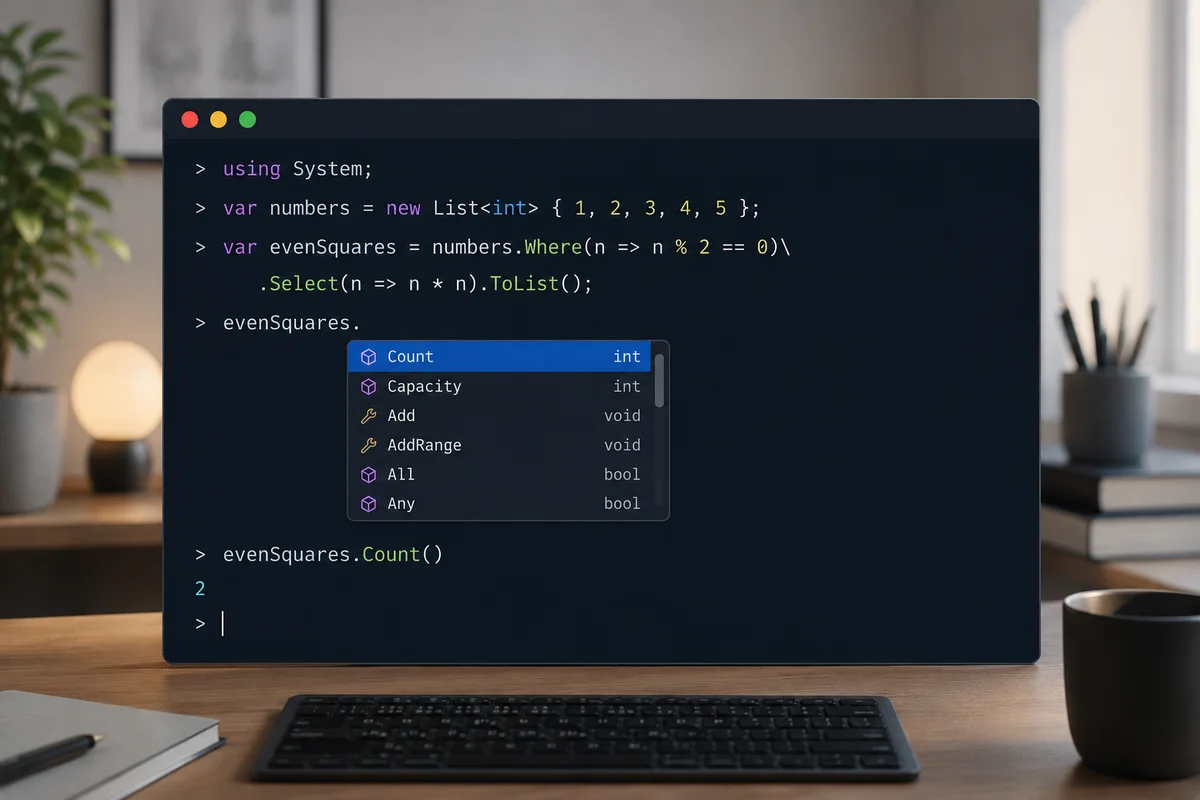
This is where it pulls ahead of the basic shells. C# REPL has intellisense built in: press Ctrl+Space and you get the autocomplete menu, with documentation and overload navigation. Type a . after an object and it shows you what's there. It highlights your syntax as you type using the same colors as Visual Studio dark mode, and it auto-formats your input.
A few things worth knowing once you're in:
Enterruns a complete statement. If what you typed isn't syntactically complete, it just drops to a new line instead of throwing an error at you.Shift+Enterinserts a newline without running, for multi-line blocks.Ctrl+Entershows a detailed view of the result. TryDateTime.Nowwith a plain Enter, then again withCtrl+Enter, and watch it expand every property of the object.F1opens the MSDN docs for whatever's under your caret.F12jumps to the source on GitHub if the assembly supports Source Link.
Expressions don't need a semicolon. Statements do. If you forget one on a statement, it adds a newline instead of running the broken code, and you just type the ; to finish. Small thing, but it means you fight the tool a lot less.
Pulling in NuGet packages on the fly
Here's the part I use most. You can install a NuGet package right inside the session with #r:
> #r "nuget: Newtonsoft.Json"
> using Newtonsoft.Json;
> JsonConvert.SerializeObject(new { name = "Safi", role = "engineer" })
{"name":"Safi","role":"engineer"}
Want a specific version? #r "nuget: Newtonsoft.Json, 13.0.5". This is the thing that used to cost me a throwaway project every single time. I'd want to test one method from one library, and the setup tax was so high I'd just... not. Now I try three packages in five minutes and keep the one that fits.
You can also reference your own code:
#r "AssemblyName"or#r "path/to/assembly.dll"for an assembly#r "path/to/project.csproj"for a local project (solutions work too)
So you can load your actual application's DLL and call into it from the shell. That's a real debugging and exploration move, not just a toy.
Loading a script to set up a session
If you keep testing against the same references and helpers, put them in a .csx script and load it:
> #load "path/to/setup.csx"
Any references, namespaces, and variables the script defines stay available for the rest of the session. I keep a small setup script with my common using lines and a couple of helper methods, and I load it first thing. It saves retyping the same boilerplate every session.
The features you'll grow into
The basics cover 90% of what you'll do. The rest is there when you need it:
- Object dumping with rich Spectre.Console formatting, so complex objects print readably instead of as
System.Collections.Generic.Listnoise. - IL disassembly and "lowered" C# (
F9andF8). PressF8and it shows the compiler-generated version of your code: async state machines, iterator expansions,foreachandusingdesugared. Genuinely useful when you want to understand what the compiler does with yourawait. - AI code completion with
Ctrl+Alt+Space. Bring your own API key (OpenAI, Anthropic, Gemini, and others), and it suggests completions based on the variables and types you've already defined in the session. - Connect to a running .NET app and run the REPL inside it, reading and writing live state, even replacing methods on the fly. Powerful, and a loaded gun: it's arbitrary code execution inside that process, so it's a dev and diagnostics tool only. Never enable it on production.
Where it sits next to the alternatives
You have options here, and the honest answer is they all work. C# REPL is the one built to feel like a proper shell first.
Visual Studio's C# Interactive pane is full-featured with highlighting and intellisense, but it's tied to Visual Studio and Windows, and it doesn't do NuGet. csi.exe ships with C# and is cross-platform, but no highlighting, no autocomplete, no .NET Core. dotnet script is great but leans toward being a script runner. dotnet interactive is the Jupyter-notebook route through VS Code. If your day is spent in the terminal, C# REPL is the one that matches the muscle memory you already have from node and python.
What to do now
Install it, then actually use it as your default "let me check" tool for a week:
dotnet tool install -g csharprepl
Next time you're about to open a new console project just to test one line, stop and type csharprepl instead. Test a LINQ chain. Check what a DateTime method returns. Pull a NuGet package and try its API before you commit to it in a real project. Once that reflex sets in, the throwaway-project habit dies, and you get a chunk of your day back. If you're still getting comfortable with the language itself, the C# iceberg pairs well with a shell open on the side to test each fact as you read it.
Last updated 12 Jul 2026 · filed under Tools, terminal application, dotnet, c#