Claude Code permission modes: approval, auto-accept, and plan mode
The three ways Claude Code handles permission (approval, auto-accept, plan mode), how to cycle them with Shift+Tab, and when to use each.



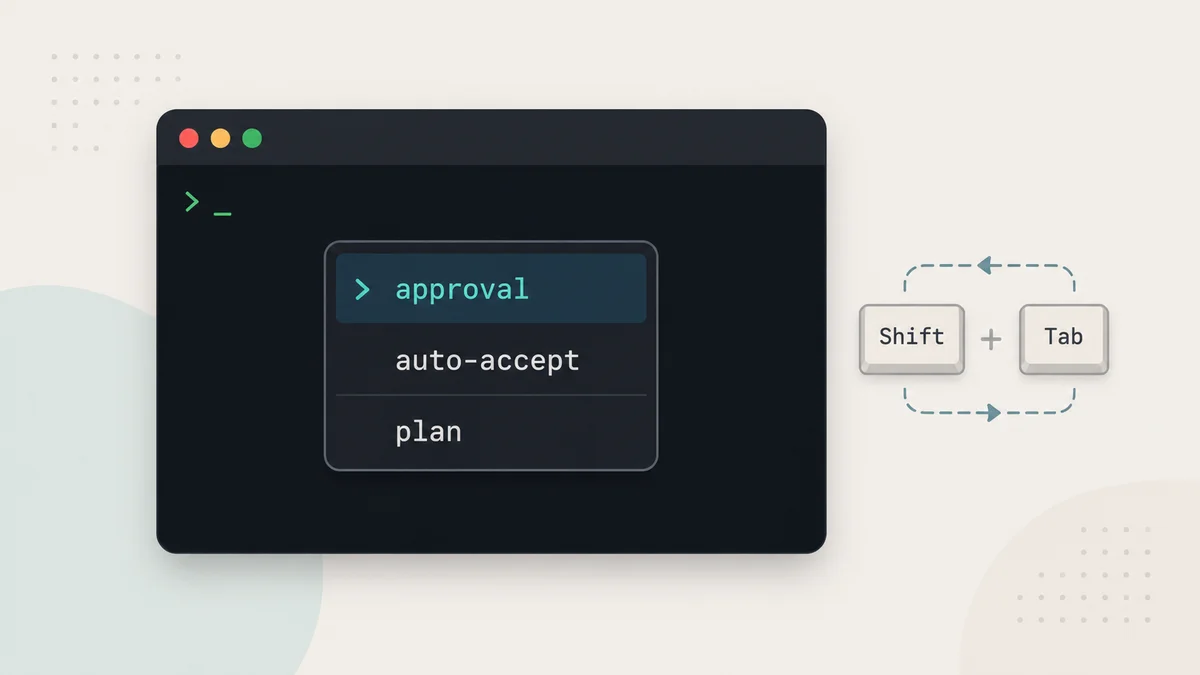
Most people run Claude Code on its default settings and never touch the one control that decides how much rope the agent gets. That control is Shift + Tab. Press it and you cycle through how Claude asks for permission: approve every change, auto-accept edits, or drop into plan mode where it reads your code and writes a plan before it touches a single file.
Pick the wrong mode and you either babysit a hundred "yes" prompts, or you look up and Claude has rewritten twelve files you never saw. Here is what each mode does and when to reach for it.
The three modes, plainly
There is no correct answer here. It is about how much you want to stay in the loop.
Approval mode. Claude asks before every file edit and every command. Nothing happens without your yes. Slow, but you see everything. This is where you want to be on code you care about or a repo you do not fully trust yet.
Auto-accept mode. File edits get approved automatically. Commands still ask. So Claude can write and rewrite files freely, but running anything (tests, installs, git) still stops for your OK. This is the sweet spot for a task you have already scoped and trust.
Plan mode. This one is different. Claude only uses read-only tools. It reads your codebase, researches the change you asked for, asks clarifying questions, and hands back a step-by-step plan. It does not edit anything until you accept the plan. Then it executes, and depending on your setting, checks in as it goes.
You cycle all three with Shift + Tab. Plan mode lives inside that same menu.
When plan mode actually earns its keep
Approval and auto-accept are about pace. Plan mode is about thinking before doing.
Reach for it when the change is not a one-liner. Multi-step features. Refactors that ripple across files. Anything where you are not 100% sure what the change should touch. Plan mode is also a genuinely good way to do a safe code review, because Claude reads the whole thing without the power to change it.
The tell is simple: if you cannot picture the diff in your head, plan first.
A real example: adding a dark mode toggle
Say your app needs dark mode. Not a token swap, a real toggle in the header that flips the whole app between light and dark, and it has to pick a contrast colour that works with your existing light theme.
That is exactly the kind of job plan mode is built for. It touches your theme setup, your header component, probably some global styles, and it needs to understand your current colours before it picks new ones.
Here is the flow. Open your project, run claude, and press Shift + Tab a couple of times until you land in plan mode. Then give it a prompt with real detail:
My app needs a dark mode implemented across the entire app. Add a toggle
switch in the header that flips between light and dark. Find a good contrast
colour that works with my existing light theme. Show me the plan before you
change anything.
Claude reads your styles, works out your current palette, and comes back with a plan: where the toggle goes, how state is stored, which files change, what the dark colours will be. You read it. If it looks right, you accept, and Claude works through the steps asking for approval at each one. At the end you can see exactly what it did and why it chose what it chose.
The difference from just letting it rip: you caught the approach before it wrote a line. If it planned to hardcode colours or put the toggle in the wrong place, you fix that in the plan, not in a pile of finished edits.
Match the mode to the task
A quick way to decide:
- New or unfamiliar repo, or code you cannot afford to break, use approval mode. Watch every step.
- A task you have already scoped and just want done, use auto-accept. Let it write, keep the veto on commands.
- Anything multi-step, any refactor, any "I am not sure what this touches", use plan mode first, then execute.
You are not locked in. Start a big feature in plan mode, accept the plan, and you drop into execution. Realise mid-task that things are riskier than you thought, hit Shift + Tab and go back to approving each step. The whole point is that the control is one keystroke away.
The one habit worth building
Be descriptive in your prompt. The dark mode example works because it names the toggle, the location, the contrast requirement, and asks for a plan. A vague prompt gives you a vague plan, and a vague plan executed is just mess with extra steps. If you want to stay in the loop, you can, at every step. Plan mode is how you let Claude dig into the detail before it commits to anything.
If you want to go deeper on getting Claude Code to behave, I wrote a fuller guide to using Claude Code right and a workflow guide from setup to automation. And when Claude gets stuck on a bug, the repro-first method is the fastest way out.
What to do now
Open a project you know well, run claude, and press Shift + Tab twice to feel where plan mode sits in the cycle. Then give it one real, multi-step task and read the plan it writes back. That single habit, plan before diff, is the difference between Claude as a fast typist and Claude as a teammate you can actually trust with a feature.
Last updated 11 Jul 2026 · filed under Tools, ai, claude, claude code