When starting a new project, choosing the right database solution can feel overwhelming. Traditional databases like PostgreSQL, MySQL, or MongoDB are powerful but often overkill for small projects or prototypes. Enter spreadsheets: Google Sheets and Microsoft Excel can serve as surprisingly capable lightweight databases for many use cases.
In this comprehensive guide, we'll explore when and how to use spreadsheets as databases, compare Google Sheets and Microsoft Excel for database purposes, and provide practical guidance for different project sizes.
What Does It Mean to Use a Spreadsheet as a Database?
Using a spreadsheet as a database means leveraging spreadsheet software to store, organize, query, and manipulate structured data that your application or workflow depends on. Instead of setting up a traditional database server, you:
- Store data in rows and columns
- Access data programmatically via APIs
- Perform CRUD operations (Create, Read, Update, Delete)
- Use built-in formulas for data transformation
- Share and collaborate on data in real-time
Why Consider Spreadsheets as Databases?
Advantages
1. Zero Setup Cost No database servers to configure, no infrastructure to manage. Both Google Sheets and Excel are ready to use immediately.
2. Built-in User Interface Non-technical team members can view and edit data directly without custom admin panels.
3. Real-time Collaboration Multiple users can access and modify data simultaneously, with built-in version history.
4. Familiar Interface Most people already know how to use spreadsheets, reducing the learning curve dramatically.
5. Quick Prototyping Perfect for MVPs, hackathons, and proof-of-concept projects where speed matters more than scalability.
6. Free or Low Cost Google Sheets is free with a Google account. Excel comes with Microsoft 365 subscriptions many organizations already have.
7. API Access Both platforms offer robust APIs for programmatic access from web applications, mobile apps, and scripts.
Limitations
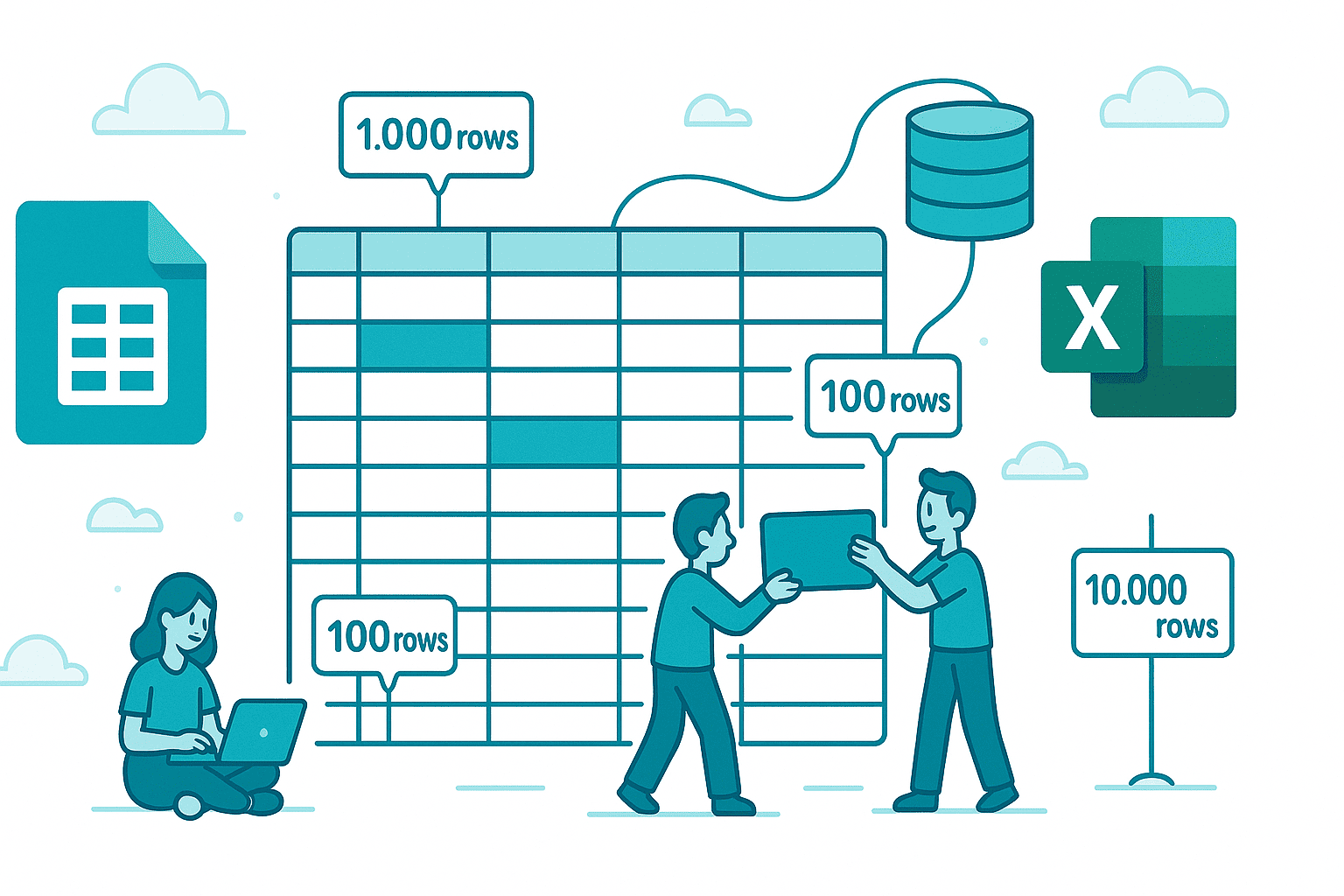
- Performance Constraints Spreadsheets: slow down significantly with large datasets (typically 10,000+ rows depending on complexity).
- Concurrent Access Issues: While collaboration works for manual editing, high-frequency API requests can cause rate limiting and conflicts.
- Limited Query Capabilities: No SQL-like complex queries, joins, or indexes. Filtering and searching are basic compared to traditional databases.
- Data Integrity Risks: No enforced schemas, foreign key constraints, or transaction support. Data validation is manual and error-prone.
- Security Concerns: Granular access control is limited. Both platforms have security features, but they're not as robust as enterprise databases.
- Scalability Limitations
- Google Sheets: Maximum 10 million cells per spreadsheet
- Excel Online: 5 million cells per workbook
- Excel Desktop: 1,048,576 rows � 16,384 columns per worksheet
Google Sheets vs Microsoft Excel as Databases
Google Sheets
Strengths:
- Cloud-native: Always accessible from anywhere with internet connection
- Google Sheets API: Robust REST API with excellent documentation
- Real-time collaboration: Superior multi-user simultaneous editing
- Integration ecosystem: Works seamlessly with Google Apps Script, Google Cloud Platform, and third-party tools like Zapier
- Free tier: Generous limits for personal and small business use
- Automatic saving: Never lose your work
- Version history: Built-in time-travel for data recovery
Weaknesses:
- Internet dependency: Requires internet connection for full functionality
- Rate limits: API quota limits (100 requests per 100 seconds per user by default)
- Formula performance: Complex formulas can slow down large sheets
- File size limits: 10 million cell limit across all sheets in a workbook
Best for:
- Web applications and cloud-based projects
- Teams requiring real-time collaboration
- Projects with distributed team members
- Integration with Google ecosystem (Gmail, Calendar, Drive, etc.)
- Serverless and JAMstack architectures
Microsoft Excel
Strengths:
- Offline capability: Full functionality without internet (desktop version)
- Performance: Desktop Excel handles larger datasets better than online spreadsheets
- Advanced formulas: More powerful calculation engine for complex operations
- Power Query: Advanced data transformation capabilities
- Desktop features: More robust charting, pivot tables, and analysis tools
- OneDrive sync: Cloud backup while maintaining offline access
Weaknesses:
- API complexity: Excel's Microsoft Graph API is more complex than Google Sheets API
- Collaboration limitations: Real-time collaboration not as smooth as Google Sheets
- Cost: Requires Microsoft 365 subscription for cloud features
- Platform fragmentation: Differences between Excel desktop, Excel Online, and Excel mobile
- Setup complexity: More steps required for API access and authentication
Best for:
- Desktop applications
- Projects requiring offline access
- Heavy data analysis with complex formulas
- Organizations already invested in Microsoft ecosystem
- Financial modeling and advanced calculations
Project Size Guidelines
Tiny Projects (0-100 records)
Use Case Examples:
- Personal task manager
- Small business inventory (boutique shop)
- Event registration form (small workshop)
- Content calendar for personal blog
- Contact list for freelancers
Recommendation: Either Google Sheets or Excel
Why it works: At this scale, both platforms perform excellently. Choose based on ecosystem preference:
- Choose Google Sheets if you want easy web access and sharing
- Choose Excel if you prefer desktop software or work offline
Implementation Tips:
- Use simple formulas for data validation
- Create named ranges for important data sections
- Use data validation dropdowns for consistency
- Enable filter views for easy sorting
Small Projects (100-1,000 records)
Use Case Examples:
- Small e-commerce product catalog
- CRM for freelancer or small agency
- Membership database for local club
- Simple booking system
- Project management tracker for small team
Recommendation: Google Sheets (preferred) or Excel Online
Why it works: Spreadsheets handle this scale comfortably. Google Sheets shines here due to better collaboration and API accessibility.
Implementation Tips:
- Structure data with clear headers in row 1
- Use one sheet per "table" (Products, Customers, Orders)
- Implement data validation rules
- Consider using Google Apps Script or VBA for automation
- Set up API access for your application
- Create separate sheets for relationships (pseudo-foreign keys)
Example Structure:
Sheet "Customers": ID | Name | Email | Phone | Created_Date
Sheet "Orders": Order_ID | Customer_ID | Product | Amount | Order_Date
Sheet "Products": Product_ID | Name | Price | Stock | Category
Medium Projects (1,000-10,000 records)
Use Case Examples:
- Growing SaaS application user database
- Multi-location business inventory
- Event management system (mid-size conferences)
- Educational platform with student records
- Marketing campaign tracker with lead database
Recommendation: Google Sheets with caching strategy
Why it works: You're approaching the practical limits, but careful design can make it work:
- Implement caching on the application side
- Minimize API calls
- Use batch operations
- Consider pagination
Implementation Tips:
- Critical: Implement application-level caching (Redis, memory cache)
- Use batch API calls instead of individual row operations
- Archive old data to separate "archive" sheets
- Use Google Apps Script for preprocessing data
- Implement proper error handling for rate limits
- Consider splitting data across multiple spreadsheets
- Use filter views instead of programmatic filtering
- Monitor API quota usage
Warning Signs to Move to Real Database:
- API rate limits frequently exceeded
- Response times consistently > 2 seconds
- Complex queries requiring multiple API calls
- Need for transactions and data integrity guarantees
- Multiple concurrent users writing data frequently
Large Projects (10,000+ records)
Recommendation: Don't use spreadsheets - migrate to a real database
Why: Beyond 10,000 records, spreadsheets become unreliable and frustrating:
- Performance degrades significantly
- API rate limits become a constant problem
- Data integrity risks increase
- Maintenance becomes time-consuming
- User experience suffers
Migration Path: When you outgrow spreadsheets, consider:
- PostgreSQL: Best all-around open-source relational database
- MySQL: Popular for web applications
- MongoDB: NoSQL option for flexible schemas
- Firebase Firestore: Serverless NoSQL with real-time features
- Supabase: Open-source Firebase alternative with PostgreSQL
- Airtable: Middle ground between spreadsheets and databases
Practical Implementation Guide
Setting Up Google Sheets as a Database
Step 1: Create Your Spreadsheet
- Go to Google Sheets and create a new spreadsheet
- Name it appropriately (e.g., "MyApp_Database")
- Create separate sheets for different data entities
Step 2: Structure Your Data
Best Practices:
- First row: Column headers
- Use consistent naming (snake_case or camelCase)
- Include an ID column (can use ROW() function)
- Add timestamp columns (created_at, updated_at)
- Use data validation for constrained fields
Step 3: Enable API Access
- Go to Google Cloud Console
- Create a new project
- Enable Google Sheets API
- Create credentials (API key or OAuth 2.0)
- Share your spreadsheet with the service account email (for service accounts)
Step 4: Connect from Your Application
JavaScript/Node.js Example:
const { GoogleSpreadsheet } = require("google-spreadsheet");
const { JWT } = require("google-auth-library");

// Initialize auth
const serviceAccountAuth = new JWT({
  email: process.env.GOOGLE_SERVICE_ACCOUNT_EMAIL,
  key: process.env.GOOGLE_PRIVATE_KEY,
  scopes: ["https://www.googleapis.com/auth/spreadsheets"],
});

// Initialize the sheet
const doc = new GoogleSpreadsheet("YOUR_SPREADSHEET_ID", serviceAccountAuth);

// Load document properties and worksheets
await doc.loadInfo();

const sheet = doc.sheetsByIndex[0];

// Read data
const rows = await sheet.getRows();
console.log(rows[0].get("Name"));

// Add data
await sheet.addRow({
  Name: "John Doe",
  Email: "john@example.com",
  Created: new Date().toISOString(),
});

// Update data
rows[0].set("Name", "Jane Doe");
await rows[0].save();

// Delete data
await rows[0].delete();
Python Example:
import gspread
from oauth2client.service_account import ServiceAccountCredentials

# Setup credentials
scope = ['https://spreadsheets.google.com/feeds',
         'https://www.googleapis.com/auth/drive']
creds = ServiceAccountCredentials.from_json_keyfile_name('credentials.json', scope)
client = gspread.authorize(creds)

# Open spreadsheet
sheet = client.open('MyApp_Database').sheet1

# Read all records
records = sheet.get_all_records()

# Add a row
sheet.append_row(['John Doe', 'john@example.com', '2025-11-10'])

# Update a cell
sheet.update_cell(2, 1, 'Jane Doe')

# Find and update
cell = sheet.find('john@example.com')
sheet.update_cell(cell.row, 1, 'Updated Name')
Setting Up Excel as a Database
Step 1: Create Your Workbook
- Create Excel file with .xlsx extension
- Save to OneDrive or SharePoint for cloud access
- Structure data with tables (Insert > Table)
Step 2: Enable API Access
- Register app in Azure AD
- Grant Microsoft Graph API permissions
- Get client ID and secret
- Authenticate using OAuth 2.0
Step 3: Connect Using Microsoft Graph API
JavaScript Example:
const { Client } = require("@microsoft/microsoft-graph-client");

// Initialize Graph client
const client = Client.init({
  authProvider: (done) => {
    done(null, accessToken);
  },
});

// Get workbook
const workbook = await client.api("/me/drive/items/{file-id}/workbook").get();

// Read data
const range = await client
  .api(
    "/me/drive/items/{file-id}/workbook/worksheets/Sheet1/range(address='A1:C10')"
  )
  .get();

console.log(range.values);

// Add row
await client
  .api("/me/drive/items/{file-id}/workbook/tables/{table-id}/rows")
  .post({
    values: [["John Doe", "john@example.com", "2025-11-10"]],
  });
Performance Optimization Tips
1. Implement Caching
// Simple in-memory cache example
const cache = new Map();
const CACHE_TTL = 5 * 60 * 1000; // 5 minutes

async function getCachedData(key, fetchFunction) {
  const cached = cache.get(key);

  if (cached && Date.now() - cached.timestamp < CACHE_TTL) {
    return cached.data;
  }

  const data = await fetchFunction();
  cache.set(key, { data, timestamp: Date.now() });
  return data;
}
2. Use Batch Operations
// Bad: Multiple individual API calls
for (const user of users) {
  await sheet.addRow(user);
}

// Good: Single batch operation
await sheet.addRows(users);
3. Minimize Data Transfer
// Only fetch needed columns
const rows = await sheet.getRows();
const emails = rows.map((row) => row.get("Email"));

// Use range queries for specific data
const range = await sheet.getCellsInRange("A2:B100");
4. Implement Debouncing for Writes
const debounce = require("lodash.debounce");

const saveToSheet = debounce(async (data) => {
  await sheet.addRow(data);
}, 1000);
Security Best Practices
For Google Sheets
- Use Service Accounts: Don't expose your personal credentials
- Minimum Permissions: Only grant necessary spreadsheet access
- Environment Variables: Store credentials in environment variables, never in code
- IP Restrictions: Limit API access to specific IP addresses if possible
- Regular Audits: Review sharing settings and access logs
- Data Validation: Sanitize all user input before writing to sheets
For Excel/Microsoft 365
- Azure AD Authentication: Use enterprise authentication
- Application Permissions: Limit scope to specific files
- Conditional Access: Implement IP and device-based restrictions
- Data Loss Prevention: Enable DLP policies
- Audit Logs: Monitor access through Microsoft 365 compliance center
When to Migrate Away from Spreadsheets
Clear Warning Signs
-
Performance Issues
- API calls taking > 3 seconds
- Frequent timeout errors
- Users complaining about slow load times
-
Rate Limiting Problems
- Hitting API quotas regularly
- Need to implement complex queue systems
- Errors during peak usage times
-
Data Integrity Concerns
- Frequent data corruption or overwrites
- Need for transactions
- Complex relationships between entities
-
Scale Requirements
- Approaching 10,000 records
- Need for advanced querying
- Multiple concurrent write operations
-
Compliance Requirements
- Need for detailed audit trails
- GDPR, HIPAA, or other regulatory compliance
- Data residency requirements
Real-World Success Stories
Case Study 1: MVP SaaS Application
- Company: Early-stage startup
- Use Case: User management for beta testing
- Scale: 500 users
- Result: Successfully ran for 6 months using Google Sheets before migrating to PostgreSQL at 2,000 users. Saved $500/month in database hosting costs during MVP phase.
Case Study 2: Event Management
- Organization: Non-profit conference organizer
- Use Case: Attendee registration and check-in system
- Scale: 1,200 attendees
- Result: Used Google Sheets with QR code check-in app. Zero downtime, zero setup cost. Volunteers could easily access and update data.
Case Study 3: Content Management
- Team: Digital marketing agency
- Use Case: Editorial calendar and content tracking
- Scale: 300 articles/month across 10 clients
- Result: Google Sheets provided perfect collaboration tool. Non-technical clients could view status and provide feedback directly.
Alternative Middle-Ground Solutions
If spreadsheets feel limiting but traditional databases seem like overkill:
Airtable
- Spreadsheet-like interface with database features
- Better relational data support
- API access included
- Free tier: 1,200 records per base
- Pricing: $10-20/user/month
Notion Databases
- Rich content database
- Multiple views (table, board, calendar)
- Good for internal tools and wikis
- Free tier available
- Pricing: $8-15/user/month
Google Firebase Firestore
- NoSQL serverless database
- Real-time synchronization
- Generous free tier
- Pay as you grow
- Better for developers than non-technical users
Supabase
- Open-source Firebase alternative
- PostgreSQL database with spreadsheet-like interface
- Real-time subscriptions
- Free tier with 500MB database
- More scalable than spreadsheets
Conclusion
Spreadsheets as databases are an excellent solution for:
- Prototypes and MVPs: Get to market fast without infrastructure overhead
- Small projects: Under 1,000 records with modest traffic
- Internal tools: When non-technical team members need direct data access
- Budget-conscious projects: When every dollar counts
- Collaborative environments: When multiple stakeholders need to view/edit data
However, they're not suitable for:
- High-traffic production applications
- Projects exceeding 10,000 records
- Applications requiring complex queries and relationships
- Systems needing strong data integrity guarantees
- Compliance-heavy industries with strict audit requirements
The Golden Rule: Start with spreadsheets for speed and simplicity, but plan your migration path from day one. When you hit 5,000 records or start experiencing performance issues, begin migrating to a proper database solution.
Quick Decision Framework
Use this flowchart to decide:
Start: Do you need a database?
|
+-- Is this a prototype/MVP?
|   --> YES: Use Google Sheets
|
+-- Do you have < 1,000 records?
|   --> YES: Use Google Sheets or Excel
|
+-- Do you need offline access?
|   --> YES: Consider Excel Desktop
|
+-- Do you need real-time collaboration?
|   --> YES: Use Google Sheets
|
+-- Do you have 1,000-10,000 records?
|   --> YES: Use Google Sheets with caching, but plan migration
|
+-- Do you have > 10,000 records?
    --> YES: Use a real database (PostgreSQL, MongoDB, etc.)
Additional Resources
Google Sheets API Documentation:
Microsoft Excel API Documentation:
Libraries and Tools:
google-spreadsheet(Node.js): Most popular Google Sheets librarygspread(Python): Simple Google Sheets Python API wrapper@microsoft/microsoft-graph-client(Node.js): Official Microsoft Graph SDKSheetDB: REST API for Google SheetsSheety: Convert spreadsheets to JSON API
Final Thoughts: Spreadsheets as databases represent a pragmatic, accessible approach to data management for small-scale projects. While they'll never replace traditional databases for large-scale applications, they occupy a valuable niche for rapid prototyping, small projects, and collaborative workflows. Use them wisely, understand their limitations, and don't be afraid to graduate to more robust solutions as your project grows.
The best database is the one that helps you ship your product fastest while meeting your current needs. For many projects, that database just might be a spreadsheet.
🤝 Need a Custom RSVP System or Dashboard?
I help businesses build tools that actually work , even on tight deadlines.
Whether you're planning an event, need internal tools, or want a custom dashboard for your team , I can help.
Reach out
📧 Email: safi.abdulkader@gmail.com | 💻 LinkedIn: @abdulkader-safi | 📱 Instagram: @abdulkader.safi | 🏢 DSRPT
Drop me a line, I’m always happy to collaborate! 🚀