
Self-hosting Appwrite behind Caddy: what the installer leaves open
Appwrite's installer gets you a running stack in minutes, then leaves three gaps on a shared VPS. Here is how I closed each one behind the Caddy that already runs my sites.

10 min read


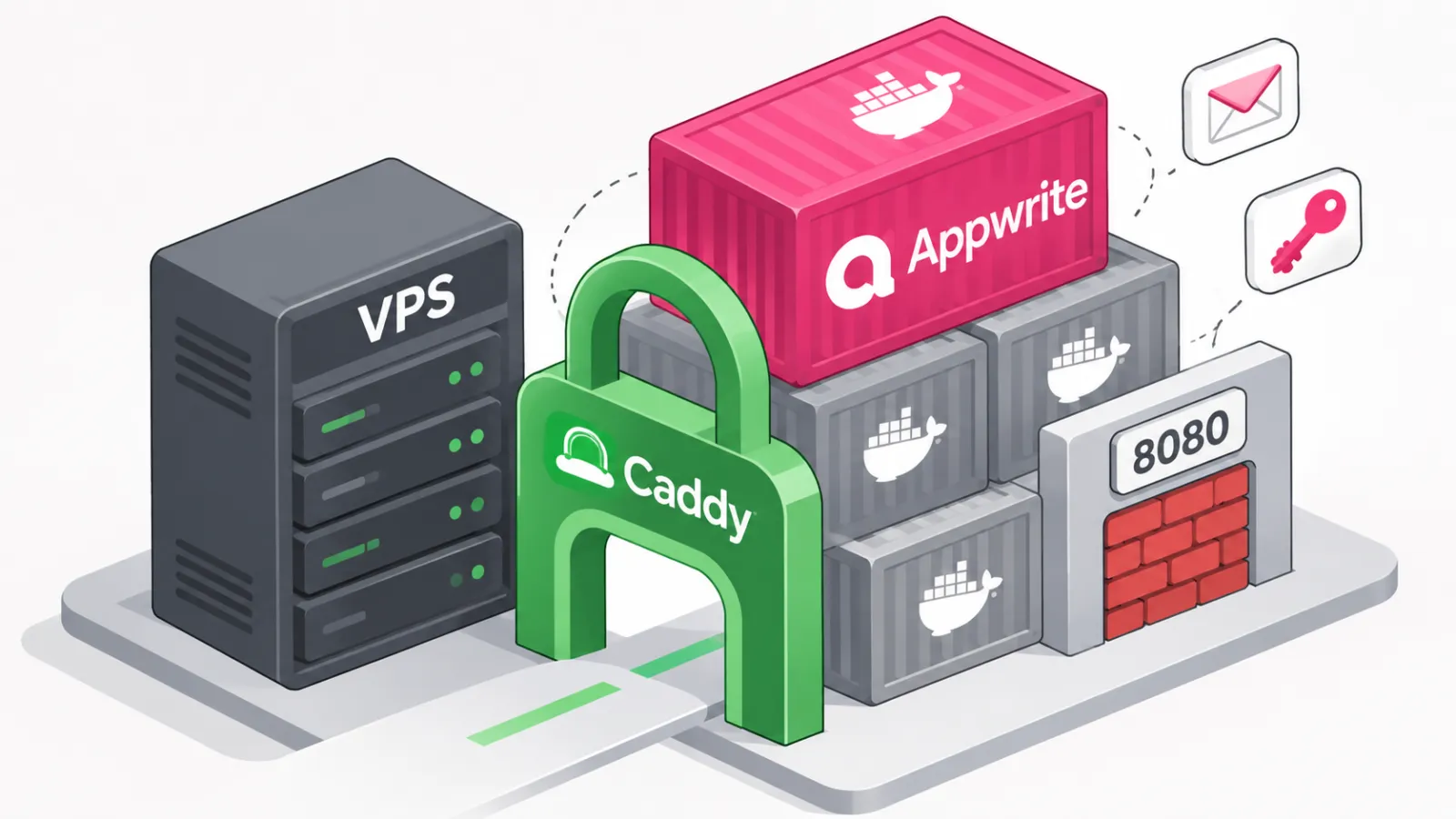
Yes, you can self-host Appwrite behind a Caddy you already run. I did it on 5 August 2026: Appwrite 1.9.6 at appwrite.abdulkadersafi.com, on a VPS that was already serving my other sites through Caddy. The installer gets the stack running in a few minutes. It also leaves three gaps open: Traefik published on every network interface, placeholder passwords in .env, and no email at all. Each one is a single edit.
This post covers the setup, the three gaps, and one Docker Compose trap that will cost you an hour if you don't know it.
The box before Appwrite
Caddy already owned ports 80 and 443 and was serving several sites. That's the constraint everything below works around. Appwrite wants to own 80 and 443 itself, and it can't have them.
Before installing, I checked three things.
The ports Appwrite would use were free:
sudo ss -tlnp | grep -E ':(8080|8443|20080)\b'
Empty output means you're clear. If something holds 8080, pick another pair and use it everywhere below.
DNS was already pointing at the box, so Caddy could fetch a certificate on the first request:
appwrite A YOUR.VPS.IP
And there was room on the disk. Appwrite's docs ask for 2 CPU cores, 4 GB of RAM and 2 GB of swap, and say nothing about disk. I wanted 20 GB free, because the stack pulls around 15 images and every function runtime is another one. If you're still picking a box, VPS prices went up across the board in 2026, so size it once.
A note on versions. I installed 1.9.6. Appwrite 2.0 shipped on 7 September 2026 with Postgres as the new default database, and the install docs now pin 2.6.2. The installer flow and every environment variable in this post are still in the current docs. Check your own docker-compose.yml before copying my port lines, since I haven't run a 2.x install.
Run the installer, then shut its port
Since 1.9, the installer is a browser wizard on port 20080 instead of terminal prompts. So you open that port, finish the wizard, and close it straight after.
sudo ufw allow 20080/tcp
sudo mkdir -p /opt/appwrite && cd /opt/appwrite

docker run -it --rm \
    --publish 20080:20080 \
    --volume /var/run/docker.sock:/var/run/docker.sock \
    --volume "$(pwd)"/appwrite:/usr/src/code/appwrite:rw \
    --entrypoint="install" \
    appwrite/appwrite:1.9.6
Open http://YOUR.VPS.IP:20080 in your browser. In step one, open Advanced settings and set the HTTP port to 8080 and HTTPS to 8443. Leave them on 80 and 443 and the install collides with Caddy.
Step two shows the _APP_OPENSSL_KEY_V1 encryption key. Put it in your password manager before you click next. You never see it again, and changing it later makes every stored password, OAuth secret and API key on the instance unreadable. Keep it somewhere other than your backups too, or the backups are useless.
Step three creates your console account. Step four installs. When it finishes, close the port:
sudo ufw delete allow 20080/tcp
If your provider has its own firewall in front of the VPS, close it there as well.
Gap one: Traefik listens on every interface
Appwrite routes all traffic through its own Traefik container. The generated docker-compose.yml publishes it like this:
    ports:
      - 8080:80
      - 8443:443
8080:80 with no address means Docker binds it on 0.0.0.0. Anyone who knows your IP can hit http://YOUR.VPS.IP:8080 and skip Caddy completely.
Here's the bit that catches people. A UFW rule won't save you. Docker writes its own iptables rules for published ports, and that traffic is routed before UFW's rules ever see it. Your firewall says 8080 is closed and the port still answers. I cover this kind of thing in my self-hosted security checklist, and it's the item I'd check first on any Docker box.
The fix is to publish on loopback only:
    ports:
      - 127.0.0.1:8080:80
Delete the 8443 line entirely. Caddy is the only thing that talks to Appwrite, and it does that over plain HTTP on loopback. Apply it (with up -d, more on that below) and check:
sudo ss -tlnp | grep 8080
You want 127.0.0.1:8080. If you see 0.0.0.0:8080, the change didn't land.
Gap two: the .env ships with placeholder secrets
When I read through the generated .env on 1.9.6, three values were still literal placeholders:
_APP_EXECUTOR_SECRET="your-secret-key"
_APP_DB_PASS="password"
_APP_DB_ROOT_PASS="rootsecretpassword"
None of them is reachable from the internet on a default install, because the database publishes no ports and the executor sits on Docker's internal network. That's why the stack runs fine with them. They are still the first thing anyone guesses once they get a foothold anywhere else on the box.
Check yours:
cd /opt/appwrite/appwrite
grep -E '_APP_EXECUTOR_SECRET|_APP_DB_PASS|_APP_DB_ROOT_PASS' .env
If they look like the above, generate three real ones with openssl rand -hex 32, paste them in, and recreate the stack while the database is still empty:
docker compose down && docker compose up -d
This is the one edit that needs down first. The database container reads those passwords only when it creates a fresh volume. Do it on day one. Once real projects exist, changing the database password means changing it inside the database as well, and it stops being a one-line job.
Gap three: no SMTP means no email at all
_APP_SMTP_HOST is empty by default. Appwrite's docs are blunt about what that means: an empty string disables all mail sending from the server.
So no verification emails, no magic links, no password resets. That includes the password reset for your own console account. Lose that password before SMTP is set up and you're fixing it from inside the database.
Fill in the SMTP block in .env:
_APP_SMTP_HOST=smtp.your-provider.com
_APP_SMTP_PORT=587
_APP_SMTP_SECURE=tls
_APP_SMTP_USERNAME=
_APP_SMTP_PASSWORD=
_APP_SYSTEM_EMAIL_ADDRESS=noreply@yourdomain.com
Use a transactional provider (Resend, Postmark, Brevo, SES). Don't run a mail server next to Appwrite for this. Outbound port 25 is blocked on most VPS hosts anyway. And don't put a Gmail address in _APP_SYSTEM_EMAIL_ADDRESS: Gmail's SPF record doesn't authorize your provider to send as gmail.com, so the mail lands in spam or bounces. Use your own domain.
The trap: docker compose restart ignores your edits
Every fix above is an edit to .env or docker-compose.yml. The obvious way to apply it is docker compose restart. It does nothing useful.
restart restarts the containers that already exist, with the config they already have. Docker's own reference says changes to your compose configuration are not reflected after running it. Your edit is sitting in the file and the container never reads it.
Use this instead:
docker compose up -d
Compose compares the files with what's running and recreates only the containers whose config changed. No down needed (the database passwords above are the one exception). Then confirm the values actually reached the container:
docker compose exec appwrite vars | grep -E 'CONSOLE_WHITELIST|_APP_DOMAIN|SMTP_HOST'
Get in the habit of checking with vars. "I changed the file" and "the container has the value" are two different facts.
The Caddy block
If you've never set up a reverse proxy, my beginner's guide to reverse proxies covers the idea. For Appwrite, the whole site block is this:
appwrite.yourdomain.com {
    encode zstd gzip

    reverse_proxy 127.0.0.1:8080 {
        header_up X-Forwarded-Proto https
    }

    request_body {
        max_size 100MB
    }
}
X-Forwarded-Proto https tells Appwrite the outside world is on HTTPS, so console links and OAuth callbacks come out with the right scheme. The realtime websocket on /v1/realtime needs no extra matcher. Caddy 2 proxies websockets on its own.
About max_size: Caddy sets no body limit unless you add one, so you only need to think about this if you cap uploads (which you should on a shared box). Appwrite's SDKs send files over 5 MB in chunks, so most uploads never get near the cap. Keep it at or above _APP_STORAGE_LIMIT (30 MB by default) and any upload Appwrite accepts gets through Caddy too. If you raise one, raise the other.
I also set _APP_OPTIONS_ROUTER_FORCE_HTTPS=disabled in .env, since Caddy already redirects HTTP to HTTPS. Per the docs it only acts when Appwrite owns ports 80 and 443, so behind Caddy it's insurance rather than a fix.
Validate and reload:
caddy validate --config /etc/caddy/Caddyfile
sudo systemctl reload caddy
curl -I https://appwrite.yourdomain.com/v1/health/version
Lock the console, then test the server
I wanted a console where only I have an account. The default already does that: _APP_CONSOLE_WHITELIST_ROOT=enabled lets only the first account use the register form. I set it explicitly in .env anyway, so nobody flips it by accident later.
What surprised me is that the Sign up link stays on the console page either way. The console is a prebuilt static app, so the lock is enforced when the form submits. Don't try to hide the page in Caddy. /v1/account is the same endpoint your own app's users sign up through, so blocking it breaks them too.
Test the server, not the button:
curl -s -o /dev/null -w '%{http_code}\n' \
  -X POST https://appwrite.yourdomain.com/v1/account \
  -H 'Content-Type: application/json' \
  -H 'X-Appwrite-Project: console' \
  -d '{"userId":"unique()","email":"nope@example.com","password":"Password123!"}'
401 means locked. I got a 401 on mine the same day. 201 means a stranger just made an account, usually because the container never picked up the .env change.
One thing people mix up: this locks the console only. Sign-ups for users of an app you build on Appwrite are a separate setting in each project, under Auth, then Security.
What I left for later
Functions and Sites preview URLs default to functions.localhost and sites.localhost, which go nowhere behind Caddy. Making them work needs a wildcard DNS record and a wildcard certificate, and that means the DNS-01 challenge and a Caddy build with your DNS provider's plugin. I skipped it until I need it.
Backups I didn't skip. Two Docker volumes matter, the database and the uploads. Find their real names with docker volume ls | grep appwrite, tar both on a schedule, and keep the encryption key from the wizard somewhere else.
If you're still choosing between this and a hosted backend, my backend as a service overview compares the main options. And for what it's like to build a real app on Appwrite, I wrote up replacing Payload with Appwrite for my training app.
What to do now
If Appwrite is already running behind a proxy on your box, take ten minutes and run these:
sudo ss -tlnp | grep 8080. If it says0.0.0.0, bind Traefik to127.0.0.1.grep -E '_APP_EXECUTOR_SECRET|_APP_DB_PASS' .env. Placeholders still there? Replace them, today if the database is empty.grep _APP_SMTP_HOST .env. Empty means you can't reset your own password.- Run the curl test above against
/v1/accountand look for a 401.
Then apply everything with docker compose up -d, check with docker compose exec appwrite vars, and stop typing restart.
Last updated 4 Nov 2026
