CSS can now animate between pages
Cross-document view transitions let plain links fade, slide, and morph between separate HTML pages, no JavaScript framework needed. Here is how to set them up and what to watch for before you ship.



For years, smooth page transitions meant one thing: build a single page app. Pull in a framework, keep everything on one page, fake the navigation, and animate the swap yourself in JavaScript. A normal link to a normal HTML page got you a hard cut. White flash, new page, done.
That is over. CSS can now animate between two completely separate HTML pages. A plain link can fade one page into the next, slide content in and out, or even take one image and grow it into its new position on the next page. No framework. No router. Just CSS and a couple of HTML files.
Here is how it works, start to finish, with the catches that bite you before you ship it.
Turn it on with one rule
The whole feature starts with the @view-transition rule. Drop this in your CSS:
@view-transition {
  navigation: auto;
}
That is it. With navigation: auto set, the browser gives you a default crossfade every time you navigate between pages on your site. Click a link, the old page blends into the new one. You did not write a single line of animation code.
Two things matter here. First, this only works between pages on the same site (same domain). It will not animate between two different websites. Second, both pages need the same CSS setup for the browser to connect them. The cleanest way to handle that is one shared stylesheet across every HTML page. I link the same CSS file everywhere and let it do the work.
The pseudo-elements that run the show
To do anything more interesting than a fade, you need to know about three pseudo-elements. They are the handles the browser gives you to grab the animation.
When a transition runs, the browser takes a snapshot of the old page and a snapshot of the new page, then animates between them. Those snapshots are what you style:
::view-transition-group(root)is the wrapper around the whole transition. Therootkeyword means "the entire page." This is where you set things that apply to both pages at once, like duration and timing.::view-transition-old(root)is the old page snapshot, the one leaving the screen.::view-transition-new(root)is the new page snapshot, the one coming in.
Want to slow the default fade down? Target the group:
::view-transition-group(root) {
  animation-duration: 1s;
}
Same crossfade as before, just slower. The browser is still doing its default thing. You only changed the timing.
Build a real slide animation
A fade is fine. A slide feels like an app. You describe it the same way you describe any other CSS animation: with @keyframes.
You need two keyframe animations. One sends the old page off to the left. One brings the new page in from the right.
@keyframes slide-out {
  to { transform: translateX(-100vw); }
}

@keyframes slide-in {
  from { transform: translateX(100vw); }
}
100vw is one full viewport width, so -100vw pushes the old page completely off the left edge, and the new page starts one full width off to the right before settling into place.
Now wire each animation to the right snapshot. The old page gets slide-out, the new page gets slide-in:
::view-transition-group(root) {
  animation-duration: 0.5s;
  animation-timing-function: ease;
}

::view-transition-old(root) {
  animation-name: slide-out;
}

::view-transition-new(root) {
  animation-name: slide-in;
}
Notice the split. Everything shared (duration, timing) lives on the group. Only the animation name, the part that differs between leaving and entering, goes on the individual snapshots. Click a link in your nav now and the old page slides out left while the new page slides in from the right. It feels like a single page app. It is not. These are separate HTML files.
Keep the navbar still
There is a problem with that slide. The navbar slides off too, even though it sits on both pages. It should stay put while only the main content moves. Watching your own nav bar fly off screen feels wrong, and it is an easy fix.
Instead of animating root (the whole page), give a name to just the part you want to move. Pick anything you like. I use page-content:
main {
  view-transition-name: page-content;
}
The name has to match exactly between what you declare and what you target. Now swap root for page-content in all three pseudo-elements:
::view-transition-group(page-content) {
  animation-duration: 0.5s;
}

::view-transition-old(page-content) {
  animation-name: slide-out;
}

::view-transition-new(page-content) {
  animation-name: slide-in;
}
The slide now applies only to the main element. The navbar stays exactly where it is. If you want, you can give different sections their own transition names and animate each one differently. Most of the time, the simple version looks best. Resist the urge to animate everything.
The party trick: morph one image into another
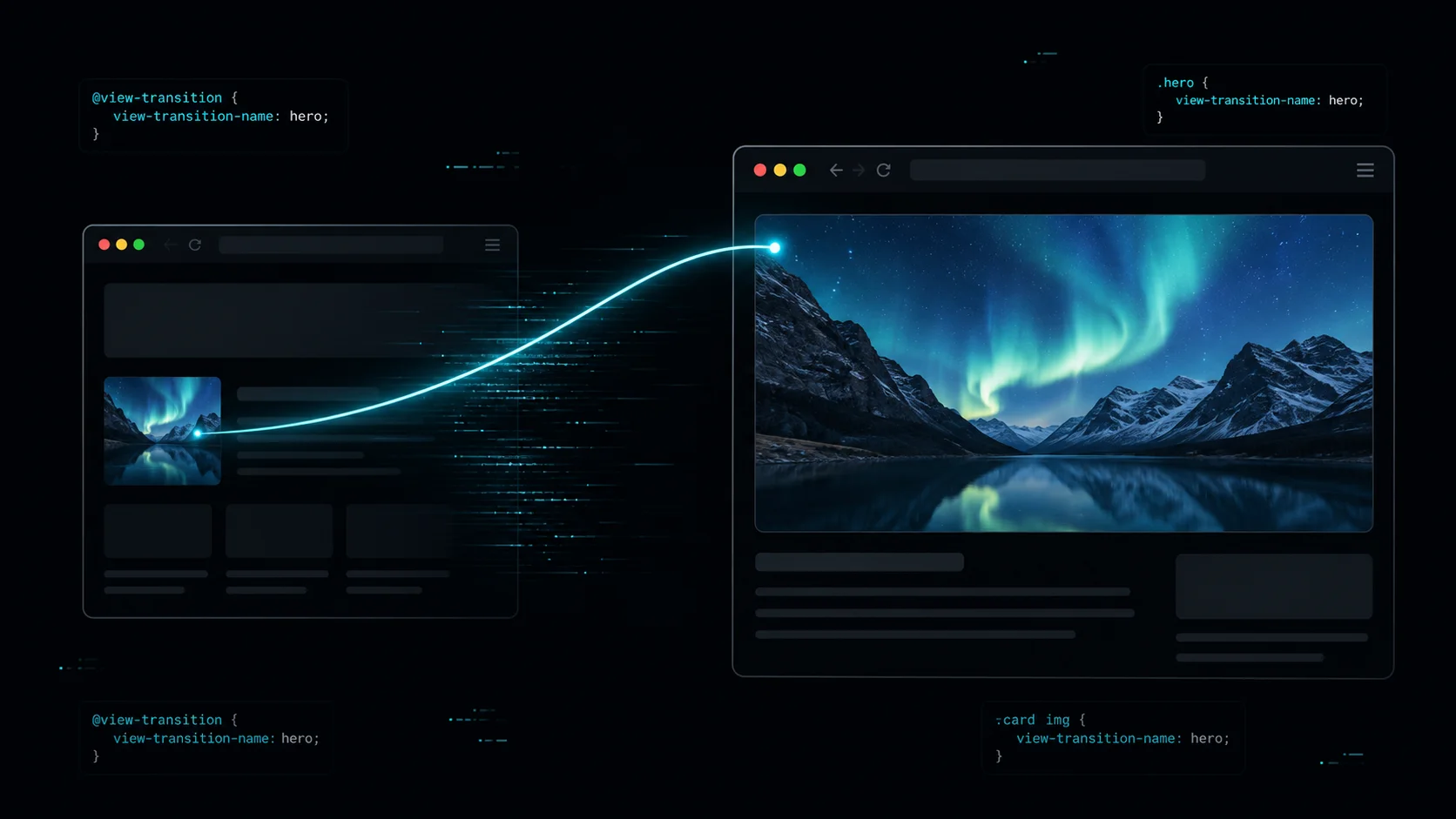
This is the one that makes people lean in. Say you have an article card with a thumbnail, and that card is a link. Click it and you land on the article page, where the same image runs as the big hero. A shared element transition makes the small card image grow and morph straight into the hero image. It looks like the image flew from one page and landed on the next.
It is actually easier to set up than the slide. You give both images, the card thumbnail and the hero, the same transition name. Since both pages share one stylesheet, you can target them together:
.card-image,
.hero-image {
  view-transition-name: article-image;
}
That is the whole trick. The browser sees the same name on both pages, creates a dedicated transition group for that image, compares its old position and size with its new position and size, and animates between the two. Small thumbnail expands into full hero. If you still have the slide animation running, comment it out for a moment so you are not watching five things move at once. With just the image transition on, click the card and the image expands into the article header. Clean.
Three things to sort before you ship
This is the fun part on a demo and a foot-gun in production. Handle these before you push it live.
Transition names must be unique. A view-transition-name has to be one of a kind on the page during the transition. A demo with a single card works fine. A real blog index with a dozen cards does not, because they would all carry the same name and the browser would not know which image to morph. Give each card image its own unique name, usually generated from the post ID.
Respect reduced motion. Some people get motion sick, or just do not want big chunks of the screen flying around. Their device setting says so. Honour it by wrapping your whole view transition block in a media query:
@media (prefers-reduced-motion: no-preference) {
  /* all your view transition CSS goes here */
}
Now the animations only apply to people who have not asked for reduced motion. Everyone else gets a normal, instant page change. This is the kind of detail that separates a polished site from a flashy one, and it is the same care you put into the core on-page elements before launch.
Mind the browser support. As of 2026, cross-document view transitions work in Chrome, Edge, and Safari. Firefox does not have them yet. During development you can hit odd glitches with live-reload servers in Chrome, so testing in Edge can save you some head-scratching. Either way, treat this as a progressive enhancement. If a browser does not support it, the link still works and the page just navigates the old way with no animation. Nobody is locked out. They just miss the nice bit.
What to do now
Start small. Add the @view-transition rule to a site that already has a couple of static HTML pages and watch the free crossfade appear. Once that works, name your main element and add a slide so the nav stays put. Save the shared image morph for a card-to-article jump where it earns its keep.
This is one of those features that quietly changes what plain HTML can do, the same way ES2025 quietly upgraded JavaScript and the way the 2026 web design patterns are leaning on motion that used to need a framework. If you have been reaching for a single page app just to get smooth transitions, you might not need to anymore.
Last updated 6 Jun 2026 · filed under Javascript, html, css, frontend